
Guest website
A guest website connected to the guest list.
Schedule, venue, accommodation and an RSVP form on one website. Guests see changes once you publish them.
Website editor · Schedule
Simplified demo
Draftpreview in the editor
Emily & James · Schedule
- 14:00Ceremony under the ash treeCourtyard – outdoor ceremony
- 14:35Congratulations and a group photoCourtyard and orchard
- 16:30Wedding meal in the barnBarn
Same as on the website.
Guest websitepublished version
Emily & James · Schedule
- 14:00Ceremony under the ash treeCourtyard – outdoor ceremony
- 14:35Congratulations and a group photoCourtyard and orchard
- 16:30Wedding meal in the barnBarn
This is how guests see the schedule.
The website schedule is a public version of the timeline: take items from the timeline, then edit them separately. That is why congratulations start at 14:35 here and at 14:30 in the team timeline. Nothing is saved here.
Website content
Wedding details, with a design that suits the couple.
You do not write the website from scratch. Sections offer information already in the wedding.
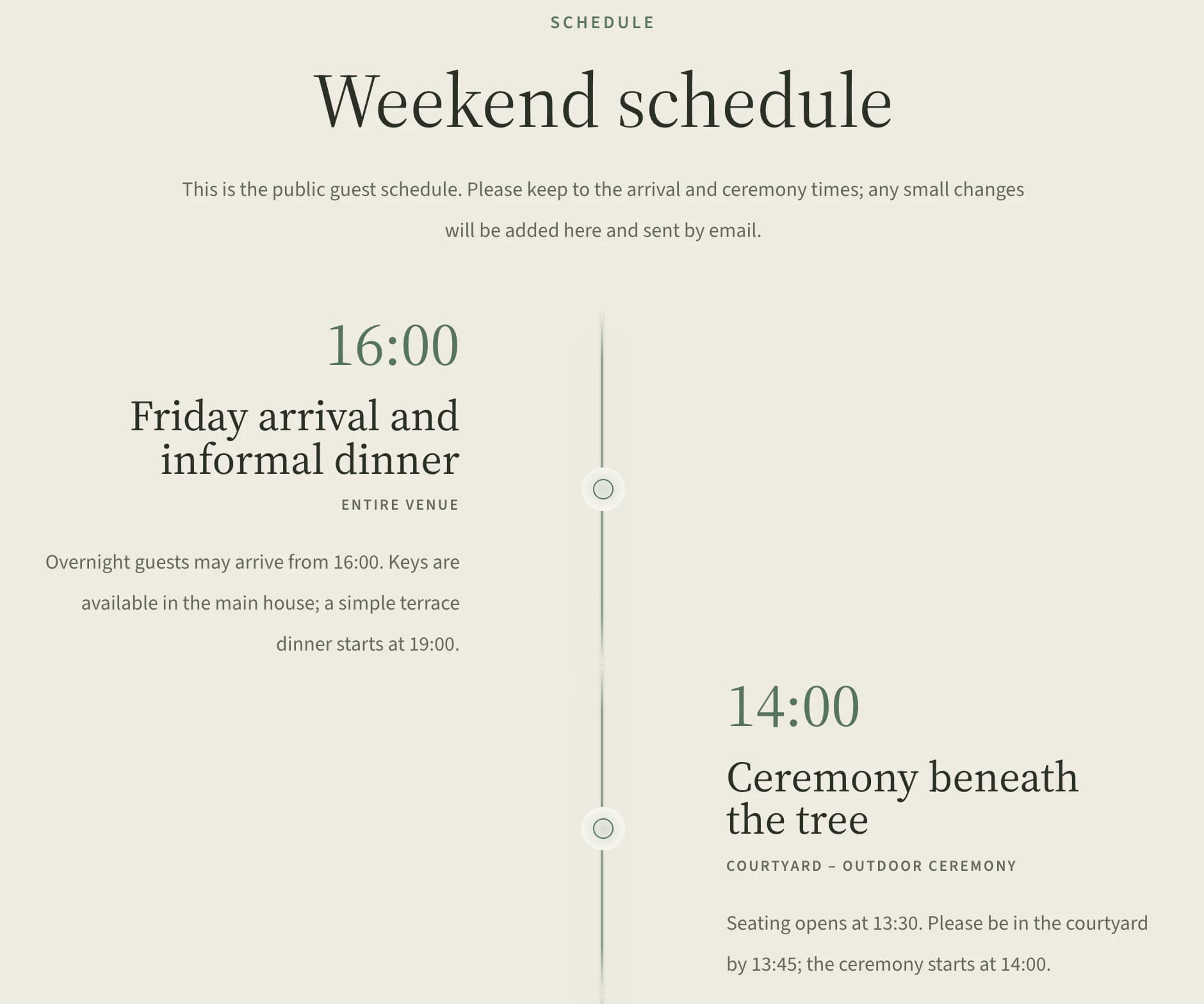
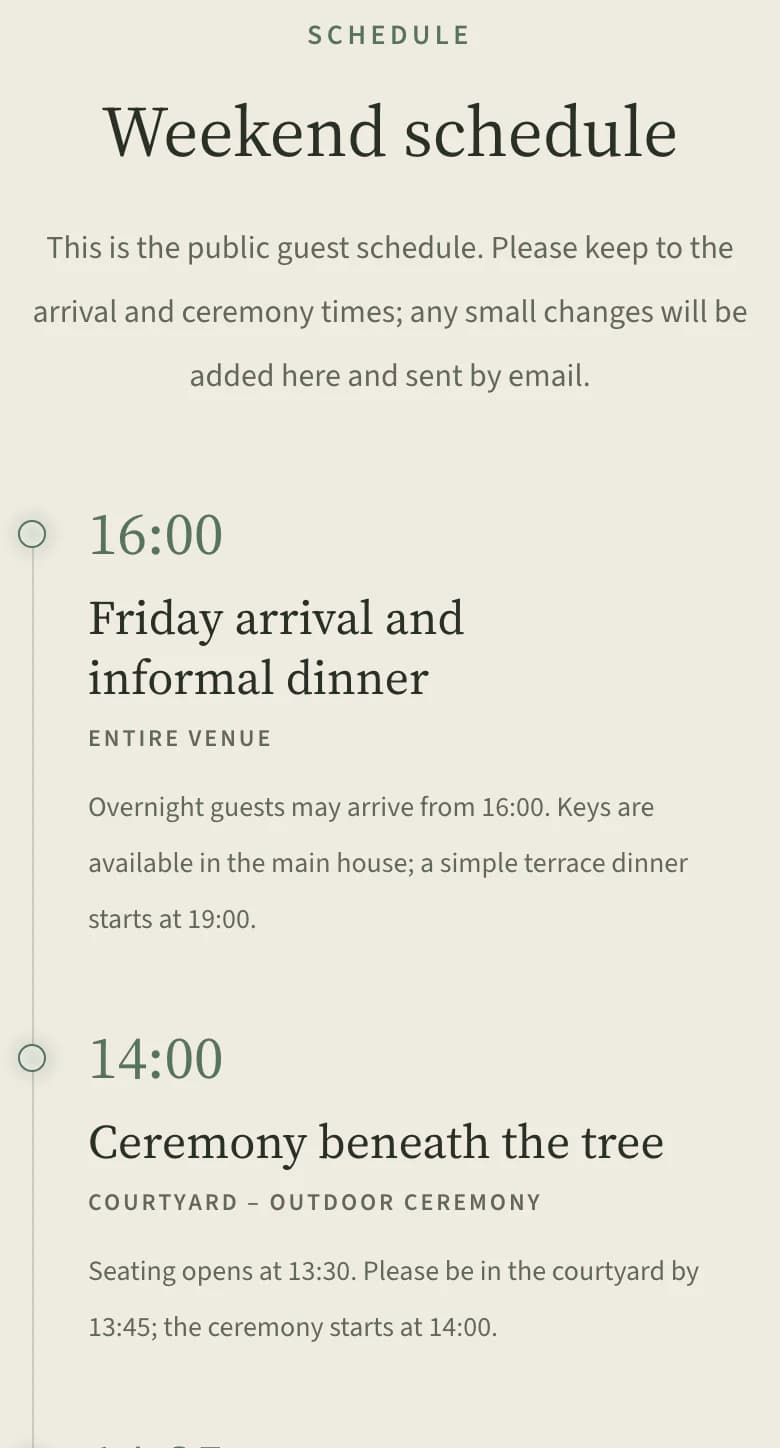
Schedule from the timeline
Add timeline items that are not internal to the schedule. You cannot accidentally add the barn reset after the reception to the website.
Accommodation and menu
The accommodation section shows properties from the wedding; the menu section shows choices from the RSVP food question.
Multiple languages
The website can have up to ten languages, such as Czech, Slovak and English. Guests switch languages in the top bar.
Your own domain
The website runs on a Kruspin address or your own domain, connected through DNS records. The Kruspin address continues to work.
More detailsSchedule from the timeline · Accommodation and menu · Multiple languages · Your own domain
Schedule from the timeline
Add timeline items that are not internal to the schedule. You cannot accidentally add the barn reset after the reception to the website.
Accommodation and menu
The accommodation section shows properties from the wedding; the menu section shows choices from the RSVP food question.
Multiple languages
The website can have up to ten languages, such as Czech, Slovak and English. Guests switch languages in the top bar.
Your own domain
The website runs on a Kruspin address or your own domain, connected through DNS records. The Kruspin address continues to work.
You do this
- Choose a designManual
- Arrange the sectionsManual
- Check the previewCheck
The app does this
- Connect the RSVP formAutomatically
- Publish and shareExport
The process in 5 stepsWhat happens at every step and what the app prevents
Choose a designManual
Start with one of five designs: Meadow, Farm, Castle, Studio or Midnight. Save a layout that works for the whole team, without a specific wedding's text.
Arrange the sectionsManual
Introduction, countdown, schedule, venue, transport, accommodation, menu, dress code, gifts, or questions and answers. Empty sections are not shown to guests.
Connect the RSVP formAutomatically
The RSVP section uses the same questions as your guest list. Website responses wait under Responses awaiting approval and are saved to guests once approved.
Check the previewCheck
Review the website in desktop and phone previews.
Publish and shareExport
After publishing, you get a link and a downloadable QR code. Guests see later edits only when you click Publish changes.
Who sees what
Guests see only the published version.
The website schedule as seen by your team, the client and guests. Guests see only what you publish.
One output, 3 viewsSchedule on the guest website
Team
Website editor
- Draft
- unpublished changes
- On the website
- published version
- Internal timeline items
- the app does not offer them for the schedule
Edit the draft and publish it when it is ready.
Client
Emily and James
- Draft
- unpublished changes
- On the website
- published version
- Internal timeline items
- cannot see
Can edit the website with you, including the preview.
Guest
Wedding website
- Draft
- cannot see
- On the website
- published version
- Guest list
- cannot see
Can see only what you publish: published sections in their language and the RSVP form.
Next step
From the website back to the guest list.
Guests and RSVP
Website form responses await your approval, then appear on guest records.
Software for wedding coordinatorsSix things to check when choosing software, each with an example from the app.
Open Emily & James's website in the editor.
After signing up, you will find it filled in in the app, including the RSVP form. Try changing the design or section order and check the preview.
Questions
Common questions about the guest website.
Did not find an answer? Write to us through the page support.
Can I use my own photos on the website?
Yes. Upload several photos at once to the Photos section. The Feature photo section shows a large image with short text, and you can choose a different photo for phones.
Is the guest website charged separately?
It depends on your agency's settings. The website can be part of the wedding package, or the client pays before it is published. You can always edit and preview it.
Can the website be password-protected?
No. Anyone with the link or QR code can open it. It does not show the guest list or their responses; guests see only the sections you publish.